Privacy Settings Guide — Android, iPhone, Windows & Browser 2026
Privacy settings decide which apps, websites, advertisers and people can reach your location, camera, files, contacts and activity. This guide shows what to change first, what each control actually prevents, and where encryption or dedicated protection adds another layer.
Use this page as a privacy control panel
Jump to a platform, compare protection methods, or work through the audit from top to bottom.
What are privacy settings?
Privacy settings are controls that limit the collection, use, sharing and visibility of personal data. They can decide whether an app sees your precise location, whether a website follows you across services, whether diagnostic data leaves your computer, and whether someone with physical access can read stored files.
They are not one master switch. A private setup is a collection of narrow choices across your operating system, apps, browser, accounts, cloud services and local storage.
Privacy
Controls who may collect, use or share information about you.
Security
Protects information and systems against loss, misuse or unauthorized access.
Anonymity
Reduces the ability to connect an activity or record to your identity.
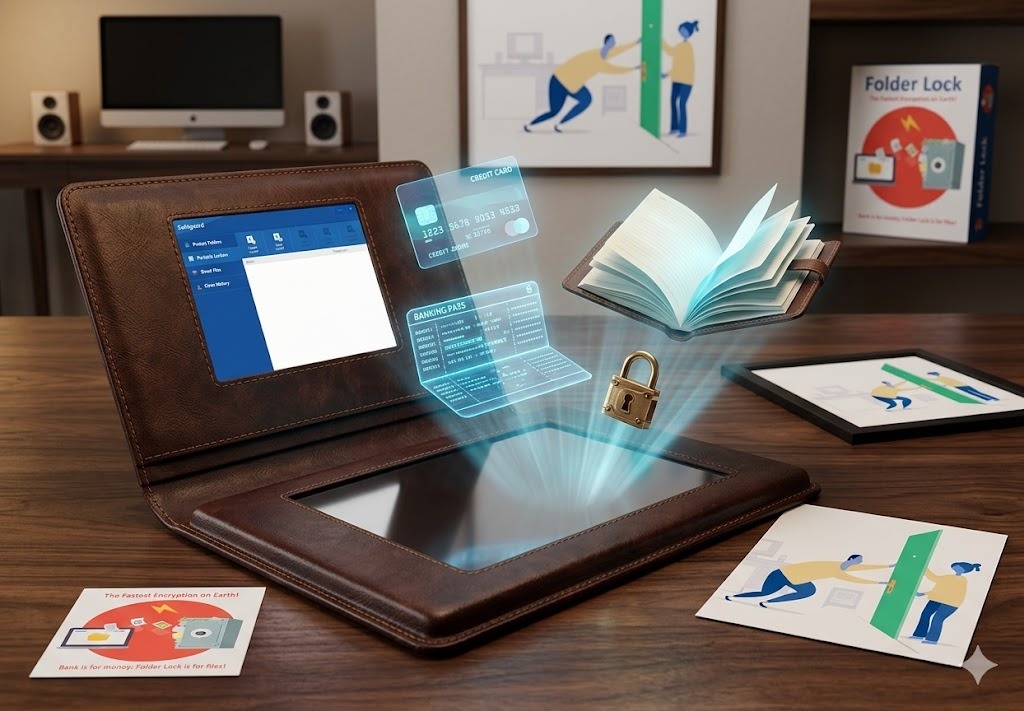
How Windows, macOS, Linux, Android and iOS handle full-disk encryption and local storage in 2025–2026
Modern platforms can encrypt data at rest, but the defaults and controls differ. Windows uses Device Encryption or BitLocker depending on hardware and edition; macOS uses FileVault; Linux commonly uses LUKS through the installer; current Android devices use file-based encryption; and iPhone data protection is tied to the device passcode. Encryption helps most when a powered-off or locked device is lost. It does not replace app permissions, backups, malware protection or separate access controls for sensitive folders.
What are you trying to do?
Device Privacy Settings
Built-in controls should be your first stop. They are free, integrated with the operating system and usually provide the clearest way to see which apps have access. Menu wording can differ by version, manufacturer and organization policy.
Android privacy settings to check first
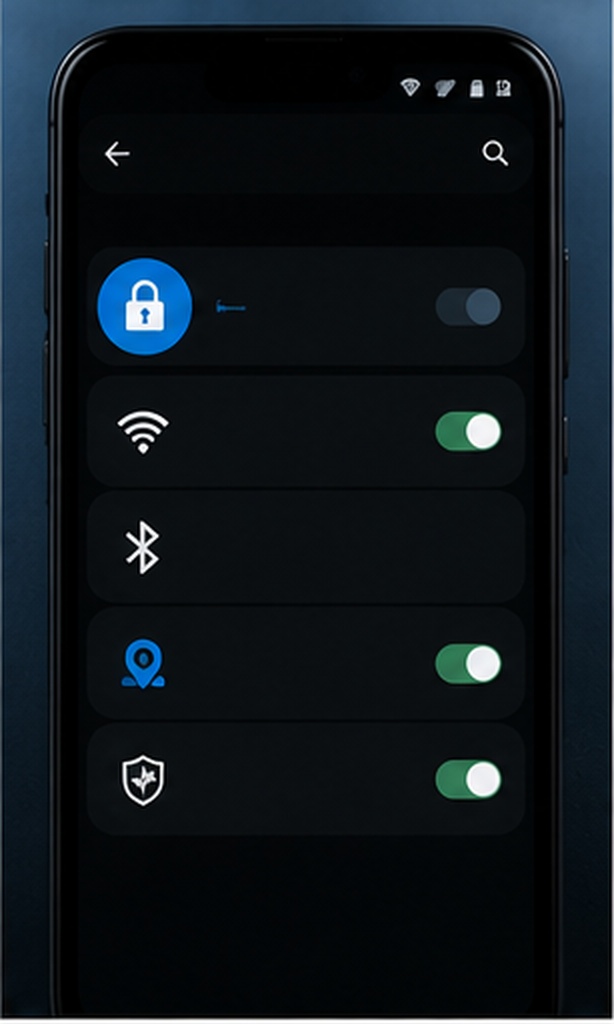
- Open Security & privacy. On recent Android versions, go to Settings → Security & privacy. Manufacturer menus may place Privacy in a separate section.
- Review Permission Manager. Check Location, Camera, Microphone, Contacts, Photos and videos, Nearby devices, Phone and SMS. Prefer “while using the app” or “ask every time” when practical.
- Use Privacy Dashboard. Review which apps used sensitive permissions recently. Investigate access that does not match what you were doing.
- Adjust Android ad privacy settings. Go to Settings → Google → All services → Ads → Ads privacy. Review ad topics, app-suggested ads and ad measurement.
- Disable unused app access. Let Android pause permissions or manually remove permissions from apps you rarely use.
Controlling app access to sensors, media, location and contacts.
Some preinstalled apps and managed devices expose different controls.
Best iPhone privacy settings for everyday use

- Open Privacy & Security. Review Location Services, Tracking, Contacts, Photos, Bluetooth, Local Network, Camera and Microphone.
- Limit location precision. Use “While Using the App” and turn off Precise Location where an approximate area is enough.
- Review app tracking requests. In Settings → Privacy & Security → Tracking, decide whether apps may ask to track activity across other companies’ apps and websites.
- Turn on App Privacy Report. It can show how often apps reach protected data and which network domains they contact. Review the report after normal phone use.
- Check Safety Check. Use it to review sharing with people and apps when personal safety or unwanted access is a concern.
10 Windows security settings for privacy
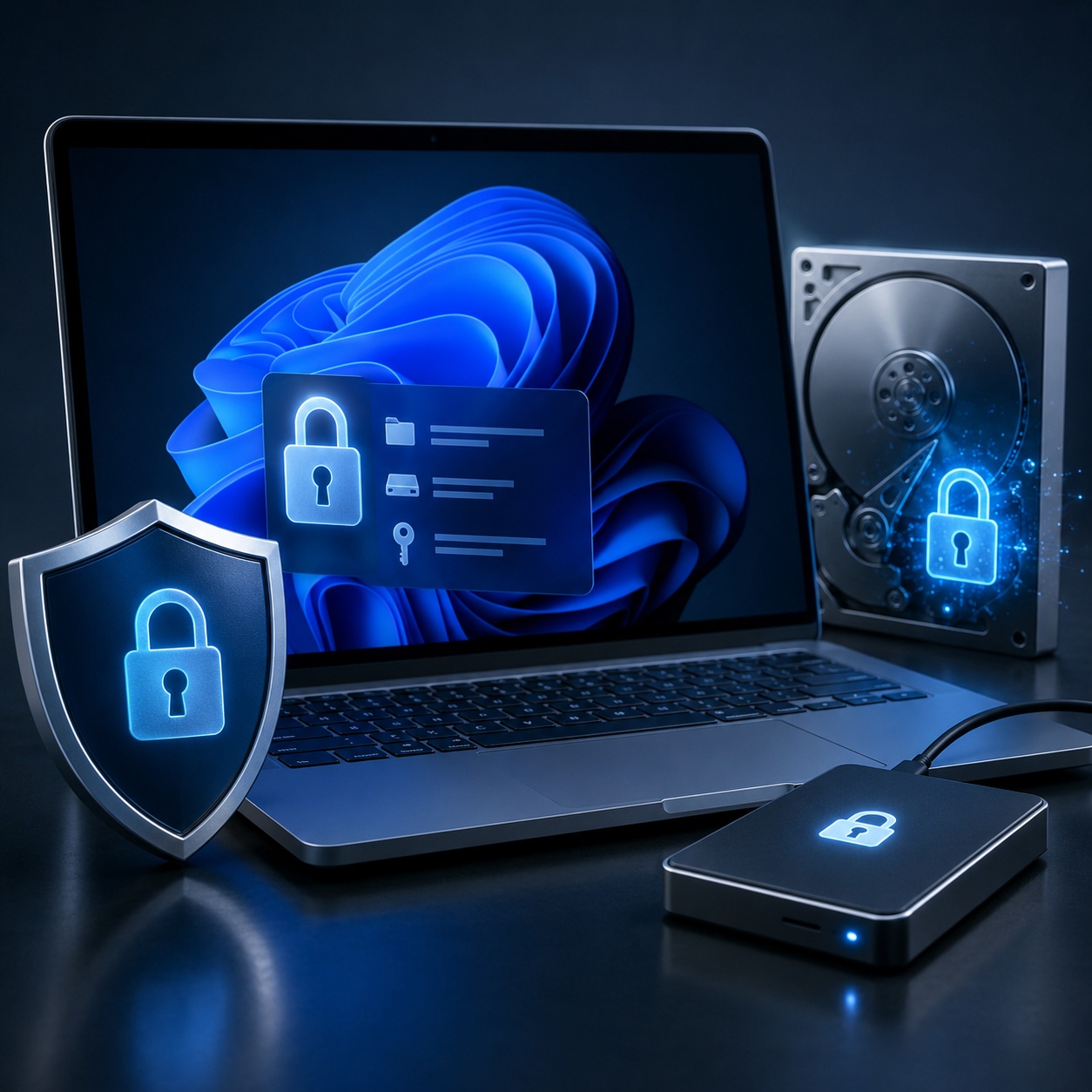
- Use a strong Windows Hello PIN or biometric sign-in and keep the account password unique.
- Open Settings → Privacy & security and review Location.
- Review Camera and Microphone access by app.
- Limit Contacts, Calendar, Calls and Messaging access.
- Check File system, Downloads, Documents, Pictures and Videos permissions where available.
- Open Diagnostics & feedback and choose the least data sharing that fits your needs and policy.
- Review Activity history, Search permissions and cloud content search.
- Keep Microsoft Defender, the firewall and SmartScreen protections enabled unless an administrator has a documented alternative.
- Enable Device Encryption or BitLocker when supported and securely store the recovery key.
- Use a standard user account for routine work when administrative access is not needed.
App permissions, diagnostics, search history and lost-device protection.
BitLocker management differs by edition, hardware and organization policy.
macOS Privacy & Security settings
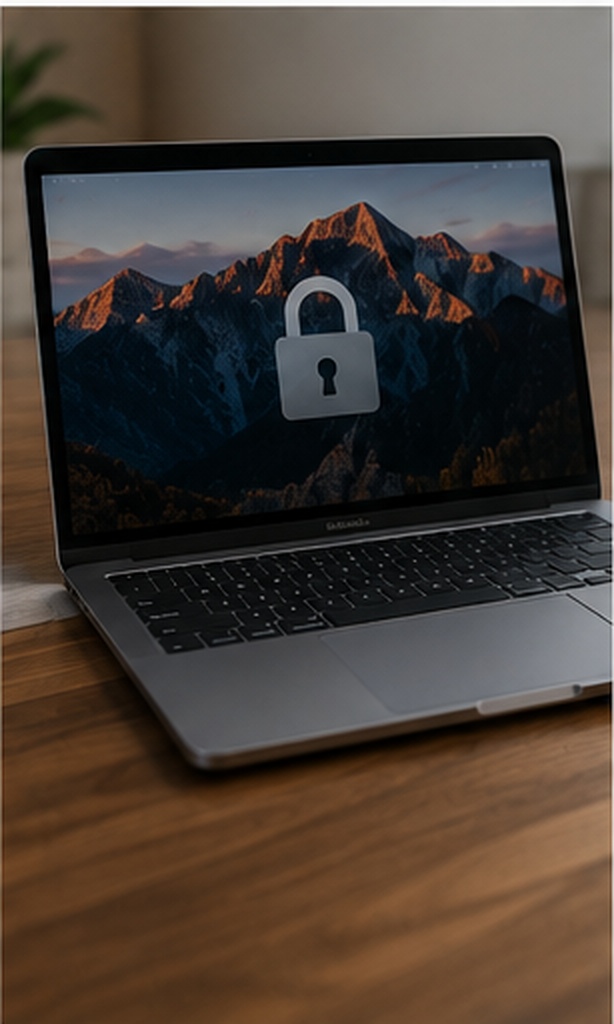
- Open System Settings → Privacy & Security. Review Location Services, Contacts, Calendars, Photos, Bluetooth, Camera and Microphone.
- Check Files & Folders and Full Disk Access. Full Disk Access is powerful. Keep it limited to software you recognize and still use.
- Turn on FileVault. Record the recovery method carefully and confirm you can regain access before relying on it.
- Review app installation controls. Keep Gatekeeper protections active and remove software that no longer has a clear purpose.
- Inspect sharing services. Disable Screen Sharing, File Sharing, Remote Login and AirPlay Receiver when they are not needed.
WhatsApp privacy settings worth reviewing

- Limit who can see Last seen and online, Profile photo, About and Status.
- Use Groups controls to reduce unwanted additions.
- Turn on two-step verification and add a recovery email you control.
- Review Linked devices and sign out unfamiliar sessions.
- Use disappearing messages where shorter retention is appropriate, while remembering recipients can still preserve content.
- Silence unknown callers and consider protecting the app with device biometrics.
Privacy setting impact matrix
A control is useful only when you understand its boundary. The matrix shows the main risk each setting reduces and what remains outside its scope.
| Setting | Social apps | Finance apps | Shopping apps | Games | What it does not stop |
|---|---|---|---|---|---|
| Precise location off | High | Med | High | High | IP-based location and locations you type manually |
| Contacts denied | High | Low | Med | Med | Contacts already uploaded or shared by other people |
| Camera and microphone limited | High | Med | Med | High | Screen capture, typed data or files you deliberately upload |
| Ad personalization reduced | Med | Low | High | High | All ads, first-party analytics or purchases tied to an account |
| Local network denied | Med | Low | Low | Med | Normal internet access or Bluetooth permissions |
| File access limited | High | High | Med | High | Files you explicitly select or data copied before access was removed |
Chrome Browser Privacy Settings and Better Defaults
Browser controls reduce tracking and risky site behavior, but signing in, accepting cookies and using the same identity across services can still connect activity. Treat the browser as one part of the privacy plan.
Check privacy settings in Chrome
- Open Settings → Privacy and security.
- Review Third-party cookies and choose a stricter setting if sites you rely on still work.
- Open Site settings and inspect Location, Camera, Microphone, Notifications, Pop-ups and redirects, and Automatic downloads.
- Use Safety Check and keep Safe Browsing enabled.
- Review Ad privacy, including ad topics, site-suggested ads and ad measurement.
- Clear stored site data selectively when you no longer trust or use a site.
Difficulty: easy · Setup: 8–12 minutes · Protection: moderate
Use stricter tracking protection
Firefox Enhanced Tracking Protection offers Standard, Strict and Custom modes. Strict mode can reduce more cross-site tracking but occasionally requires a site exception.
- Review website permissions.
- Enable HTTPS-Only Mode where practical.
- Use separate profiles or containers for identities that should not mix.
- Remove extensions you do not need.
Difficulty: easy · Setup: 6–10 minutes · Protection: moderate to strong
Extensions are permissions too
A browser extension may be able to read and change data on websites. Prefer fewer extensions, install from the official store, review requested access, and remove tools that have changed ownership or purpose.
How Windows macOS Linux Android iOS Handle Full Disk Encryption Local Storage
Encryption converts stored data into an unreadable form until an authorized key is supplied. The most important distinction is whether protection covers the whole device, individual files, or only one app’s vault.
Windows
Supported devices may use Device Encryption, while BitLocker management is available on Pro, Enterprise and Education editions. Protection is strongest against offline access to a lost or stolen drive.
Store the recovery key somewhere separate from the computer.
macOS
FileVault encrypts data on the startup disk. A recovery key or approved account recovery method is critical if the login password is forgotten.
Verify the recovery method before assuming the Mac is recoverable.
Linux
Many distributions offer LUKS-based disk encryption during installation. Setup quality, key storage and sleep-state behavior depend on the distribution and configuration.
Back up the LUKS header or recovery material only when your distribution’s guidance recommends it.
Android
Current Android devices use file-based encryption. A strong screen lock helps protect credential-encrypted data, while some device-encrypted data remains available for limited pre-unlock functions.
A weak PIN can undermine otherwise strong storage encryption.
iPhone and iPad
Data Protection uses hardware-backed encryption and classes tied to the device passcode. Some classes become available after first unlock, while the strongest classes require the device to remain locked.
Use a longer passcode and keep recovery information current.
File-level encryption
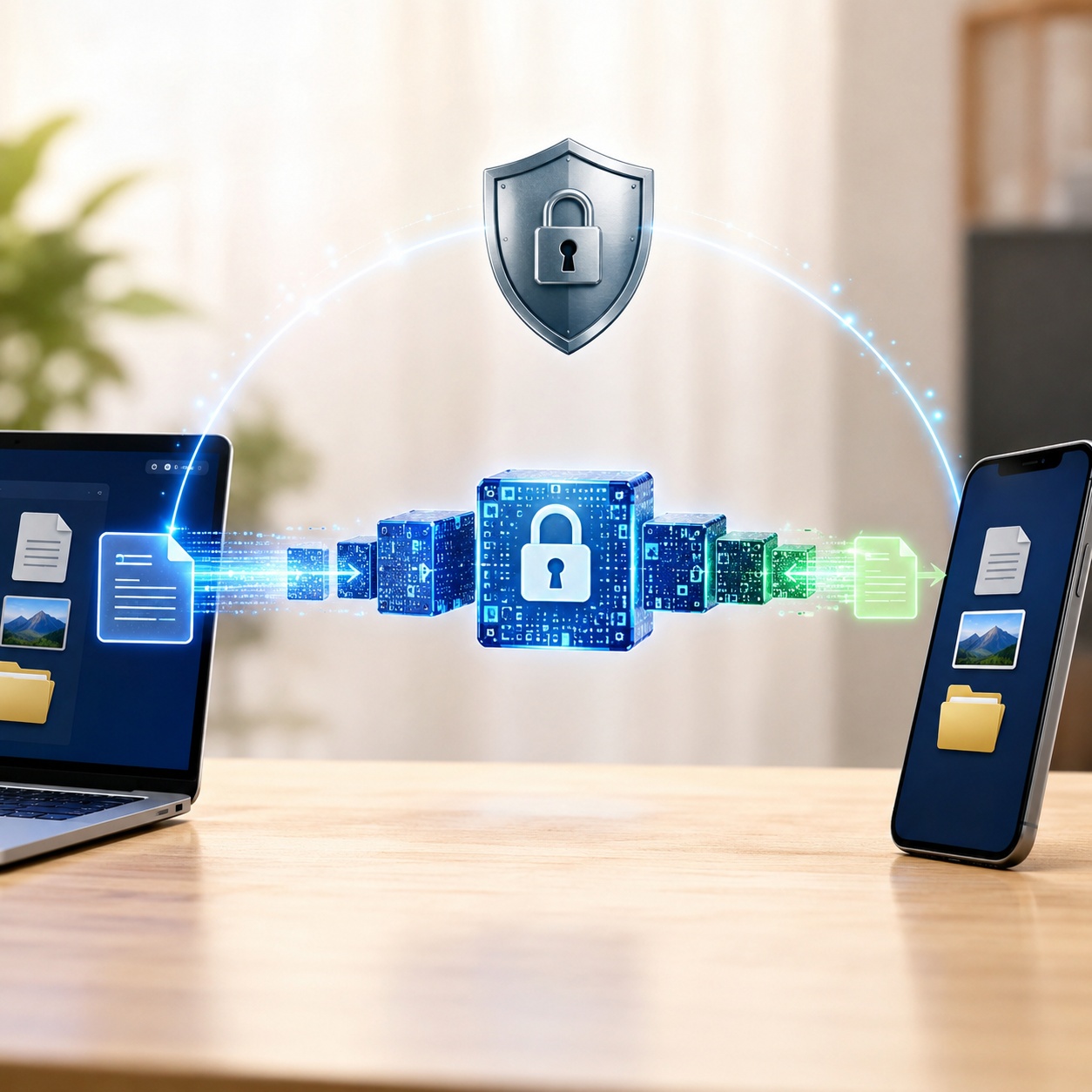
Encrypted archives and dedicated vaults protect selected files separately. This is useful for sharing, multi-user computers, removable drives or keeping sensitive data behind another access boundary.
Strength depends on the format, password, software and whether temporary copies remain outside the vault.
What encryption protects
- Data read directly from a powered-off or locked storage device
- Files inside a correctly closed encrypted vault
- Some backups and removable media when separately encrypted
What encryption does not fix
- Malware reading data while you are signed in
- Weak account recovery or stolen session tokens
- Cloud copies, screenshots or data already shared
- Data loss when no usable recovery key or backup exists
Does current use encryption protect my personal data?
Yes, current encryption can protect personal data at rest and in transit when it is correctly implemented and the keys remain secure. It reduces the harm from lost hardware, intercepted traffic and direct drive access. It cannot protect information after an authorized session, app or recipient has decrypted it, so combine it with permissions, authentication, updates, backups and data minimization.
The Most Common Ways Personal Data Gets Compromised
Most incidents do not require a cinematic “hack.” They start with password reuse, convincing phishing, an over-permissioned app, an exposed cloud link, an unpatched device, a stolen unlocked phone, a malicious browser extension or a service breach outside your control.
The practical response is layered. Use a password manager and unique passwords, turn on multi-factor authentication, reduce permissions, update devices, encrypt storage, maintain recoverable backups and keep less sensitive data in the first place.
How data brokers collect and sell your personal data
Data brokers assemble records from public sources, commercial transactions, apps, websites and other providers. They may infer interests, household traits, likely purchases, locations or risk categories, then sell or license access for advertising, identity verification, research and other uses.
Apps, purchases, public records, forms and tracking signals
Email, phone, device identifiers and household links
Interests, habits, life events and likely attributes
Segments, scores, profiles and identity products
Advertisers, service providers and other customers
Opting out of data collection — step by step
- Make a list of major accounts, loyalty programs and apps you use.
- Open each service’s privacy or data controls and disable optional sharing or targeted advertising.
- Submit access, deletion or opt-out requests to major data brokers that list you.
- Use your regional rights portal where available.
- Keep a request log with the company, date, confirmation and follow-up deadline.
Data minimization principles
- Collect or store only what has a clear purpose.
- Use the least precise data that still works.
- Set retention periods instead of keeping records forever.
- Separate identities and accounts where mixing adds risk.
- Delete duplicate exports, old scans and unused backups.
GDPR and CCPA — your rights explained simply
GDPR rights
For covered processing in the European Economic Area, people may have rights to receive clear information, access data, correct it, erase it in certain cases, restrict or object to processing, receive portable data, and challenge some automated decisions.
Rights depend on the legal basis, exceptions and the organization’s role. A regulator or qualified adviser can help with a disputed request.
California privacy rights
California law gives covered consumers rights that include knowing, deleting and correcting certain personal information, opting out of sale or sharing, limiting some uses of sensitive information, and receiving equal treatment for exercising rights.
California’s DROP portal began accepting requests in 2026. Registered data brokers are scheduled to begin processing deletion requests on August 1, 2026.
How to exercise a privacy right
Use the organization’s privacy request form, identify the right you are exercising, provide only the verification information reasonably needed, keep the confirmation, and note the response deadline. Do not send identity documents through ordinary email unless the organization has a secure and legitimate verification process.
What does “processing” personal data mean?
Processing is broader than selling or analyzing data. It includes collecting, recording, organizing, storing, changing, retrieving, consulting, using, sharing, combining, restricting, erasing or destroying personal data. In practical terms, nearly any operation performed on identifiable data can count as processing.
Free vs Paid Privacy Tools — Is It Worth Paying?
Pay for a privacy tool when it solves a specific gap, has a clear business model and saves enough time or risk to justify the cost. A paid label alone does not prove better privacy.
Built-in operating-system controls
Permission managers, encryption, firewalls, secure updates and account security settings offer the highest-value first steps.
Best for: everyone · Trade-off: spread across several menus
Password managers and authenticators
These reduce password reuse and make strong sign-in practices realistic. Evaluate encryption design, recovery, exports and platform support.
Best for: account protection · Trade-off: recovery planning is essential
Data removal services
They can automate repeated broker requests, but coverage varies and records may reappear. Manual opt-outs remain useful for the most important listings.
Best for: time savings · Trade-off: ongoing subscription and incomplete coverage
VPN services
A trustworthy VPN protects traffic between your device and the VPN server and hides your IP from destination sites. It shifts trust to the VPN provider and does not erase account-based tracking.
Best for: untrusted networks and IP privacy · Trade-off: not complete anonymity
Encrypted file and folder tools
Useful when sensitive files need a separate password boundary, portable encrypted storage or protection beyond a shared device account.
Best for: selected local files · Trade-off: closed vaults and recovery discipline matter
Privacy-focused browsers and search
Tracker blocking, cookie isolation and reduced search profiling can lower passive collection, especially when combined with fewer logins and extensions.
Best for: daily web use · Trade-off: occasional site compatibility issues
Free is usually enough when
- You are starting with basic permissions and account hygiene.
- The operating system already provides the required control.
- You can perform occasional broker opt-outs manually.
- You need a transparent, open format rather than extra convenience.
Paid can be worthwhile when
- You need automation across many services or devices.
- You need support, centralized management or a specific recovery process.
- The tool adds a separate protection layer not built into your setup.
- You have verified the price, renewal terms, limitations and data practices.
How to use privacy-focused browsers and search engines
Choose a browser with active security updates, clear tracking controls and a manageable extension ecosystem. Then reduce the number of extensions, block third-party tracking where practical, delete permissions you no longer need and separate work, personal and sensitive activity into profiles.
A privacy-focused search engine can reduce search-history profiling, but clicking a result still connects you to the destination site. For stronger separation, avoid signing into unrelated services in the same browser profile and do not assume a private search engine hides activity from the network.

Creating a personal data security plan in 5 steps
- Inventory your data. List devices, main accounts, cloud drives, messaging apps, financial services, backups and identity documents. Note where each category is stored.
- Reduce what exists. Delete duplicate exports, unused accounts, obsolete backups and apps that no longer serve a purpose.
- Strengthen access. Use unique passwords, a password manager, multi-factor authentication, strong device locks and current recovery details.
- Protect storage and sharing. Enable device encryption, secure sensitive folders separately, restrict link sharing and keep a tested backup.
- Schedule reviews. Recheck permissions monthly, account sessions quarterly, recovery methods twice a year and after any major breach or device change.

Folder Lock 10 is most useful when privacy settings stop at app permissions
Device and browser controls decide which apps may reach your location, camera, contacts and other data. They do not create a separate protected workspace for the records you deliberately keep. Folder Lock 10 fills that narrower gap with encrypted lockers and private-data tools that sit alongside the operating system’s own security.
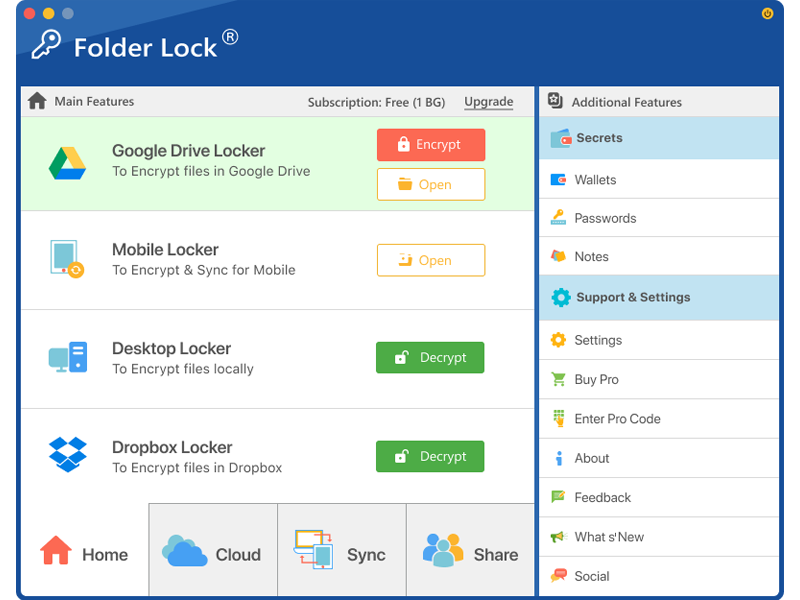
The Windows edition has the widest toolset, including local and cloud lockers, portable protected containers, folder access controls, private notes and wallets, file removal tools and local-history cleanup. The macOS edition, for macOS 13 or later, concentrates on encrypted local and cloud lockers, device sync, controlled sharing and Secrets. It does not include the Windows Safeguard module.
Android and iOS use a mobile-vault model for photos, videos, documents, audio, notes and wallet records. Android also includes an app-locking function, while the iPhone and iPad edition includes Wi-Fi file transfer. Both mobile editions add access-attempt records, a private browser and cross-device access to supported encrypted content.
Folder Lock does not replace BitLocker, FileVault, a strong device passcode, multi-factor authentication, backups, malware protection or managed business security. Use it as an extra compartment for selected information, not as the only control protecting the device.
Developed by NewSoftwares.net. Confirm the supported operating-system version, plan limits, billing period and recovery process before placing irreplaceable data in any vault.
Choose the boundary you need
Where dedicated file and app protection can add value
Keep a sensitive working set behind another sign-in
Create separate Windows accounts first. A closed encrypted locker can then add another boundary around tax records, scans, contracts or personal correspondence used on the same computer.
Encrypt selected material before the sync service copies it
A cloud locker can be useful when Dropbox, Google Drive or OneDrive handles transport and versioning, but the files should not remain ordinary readable documents inside the sync folder.
Move a protected collection instead of loose files
Windows users can prepare a portable encrypted container for a trusted USB workflow. Test it on the destination computer before deleting any source copy.
Separate private media and records from everyday apps
The mobile editions provide a vault for selected media, documents, audio, notes and structured private information. Android also offers app locking, while iOS provides local Wi-Fi transfer.
Use Folder Protect when access rules matter more than encryption
On Windows, Folder Protect can apply different restrictions to files, folders, drives, programs or selected file types. It is better suited to blocking viewing, changes or deletion than to creating an encrypted locker.
Managed devices and single-control expectations
Use the organization’s approved endpoint platform on managed equipment. A consumer vault is also the wrong answer when the actual need is whole-device encryption, account recovery, malware defense or a reliable backup.
What Folder Lock 10 provides on each supported platform
The product family shares the idea of a private vault, but the controls are not identical across Windows, macOS, Android and iOS. Choose based on the edition you will actually use.
Windows: the broadest desktop edition
- Encrypted lockers
- Create protected workspaces for local files or supported cloud-sync folders, with data encrypted as it enters the locker.
- Safeguard controls
- Lock or hide selected files, folders and drives when access restriction is useful in addition to encryption.
- Portable containers
- Prepare an encrypted locker for removable storage and test access before relying on it away from the original PC.
- Cleanup tools
- Use the included shredding and Windows-history functions for supported local cleanup tasks, while recognizing that flash storage can limit secure-deletion certainty.

macOS 13 and later: lockers, sync and sharing
- Desktop and cloud lockers
- Protect a local collection or encrypted content associated with Dropbox, Google Drive and OneDrive.
- Secrets
- Keep notes, password records and wallet-style entries inside the product’s protected area on the paid plan.
- Cross-device workflow
- Link supported Windows, Mac, Android and iOS apps so compatible encrypted material can be reached from more than one device.
- Important boundary
- The Mac release does not include the Windows Safeguard feature, so do not assume Windows folder-locking and cleanup controls are present.
Android: vault plus app-level controls
- Private content areas
- Import selected photos, videos, documents and audio into protected categories rather than leaving every copy in ordinary apps.
- Notes and wallets
- Keep private text and structured personal records inside the vault.
- App locking
- Add a local lock to selected apps when the device and Android version allow the feature to operate correctly.
- Access monitoring
- Review recorded failed-entry activity and use the built-in private browser for sessions that should not remain in the regular browser history.

iPhone and iPad: vault plus local transfer
- Protected media and files
- Store selected photos, videos, documents and audio inside the app’s private area.
- Wi-Fi transfer
- Move supported files between the iOS device and a computer over the same trusted network without depending on a cable or cloud upload.
- Private records
- Create protected notes and wallet entries for information that should not remain in ordinary note or photo apps.
- No Android-style app locker
- The supplied iOS feature set emphasizes the vault and transfer workflow rather than locking other installed apps.
Shared services and plan limits
- Cloud choices
- The product documentation identifies Dropbox, Google Drive and OneDrive as supported locker or backup locations.
- Free allowance
- The current comparison pages describe a 1 GB free locker allowance and linking for up to two devices, with exact included functions varying by platform.
- Pro allowance
- The paid comparison expands locker capacity and raises the linked-device count to five, with sharing and advanced features dependent on the operating system.
- Recovery responsibility
- A protected vault can become inaccessible when its credential and official recovery information are both unavailable. Set up recovery before moving the only copy of important data.
Which privacy protection method is right for you?
Native app permissions
- Difficulty
- Easy
- Security
- Strong for sensor and data access
- Cost
- Included
- Best for
- Camera, microphone, location, contacts and photos
- Limitation
- Does not create a separate protected file workspace
Full-disk encryption
- Difficulty
- Easy to moderate
- Security
- Strong while the device is locked or powered off
- Cost
- Usually included
- Best for
- Lost or stolen hardware
- Limitation
- Files are normally available after the user signs in
Encrypted archive
- Difficulty
- Moderate
- Security
- Strong with a current format and good password
- Cost
- Often free
- Best for
- Occasional transfer or long-term storage
- Limitation
- Extraction can leave ordinary copies behind
Folder Lock 10
- Difficulty
- Easy to moderate
- Security
- Encrypted lockers plus edition-specific privacy tools
- Cost
- Free allowance or paid Pro
- Best for
- Frequently used private files across supported devices
- Limitation
- Features differ by platform and it is not a backup
Folder Protect
- Difficulty
- Easy to moderate
- Security
- Windows access and change restrictions
- Cost
- Paid desktop utility
- Best for
- Blocking viewing, modification or deletion of selected Windows items
- Limitation
- It is not a substitute for cryptographic encryption
How to add a Folder Lock vault without weakening device security
- Keep the native baseline enabled.
Turn on the device screen lock, updates and whole-drive encryption first. A private locker should add a boundary, not replace the controls that protect the entire device.
- Install the correct platform edition.
Use the official NewSoftwares page and select Windows, macOS, Android or iOS. Check the operating-system requirement and confirm that the edition includes the function you need.
- Create the credential and recovery plan.
Use a unique master credential. Complete the official account or recovery setup, then store the recovery information somewhere other than the protected device.
- Choose local, cloud or mobile storage deliberately.
Use a local locker for one-device work, a supported cloud locker when synchronization is required, or the mobile vault for selected phone and tablet content. Sync is not the same as backup.
- Test with noncritical copies.
Add a small sample, close the protected area, reopen it on the intended device and confirm that the files remain usable. Test cross-device access separately when you plan to rely on it.
- Remove exposed duplicates only after verification.
Check the protected copy and a separate backup before deleting ordinary versions. Remember that secure deletion behaves differently on solid-state and flash storage.
- Close the vault and review access routinely.
Close or lock the protected area when the work is finished. Recheck linked devices, cloud accounts, recovery details and backup restoration after major updates or device changes.
How the Folder Lock product layers differ
BitLocker, FileVault and mobile storage encryption protect the underlying device while it is locked or off. A Folder Lock locker protects a selected collection behind another credential and can stay closed during an ordinary signed-in session. Use both when the threat includes device loss and casual access during active use.
The Windows Safeguard tools restrict or hide selected files, folders and drives. That is useful for reducing casual access, but it is a different control from placing content inside an encrypted locker. Choose encryption for high-sensitivity material and treat hiding or access blocking as an additional convenience layer.
The macOS edition focuses on encrypted lockers, cloud locations, device linking, sharing and private records. Android adds an app locker, while iOS adds local Wi-Fi transfer. Do not select a plan based on a Windows feature list and assume the same control exists on another operating system.
Applications running under the authorized session can access data that the user has opened. Malware, remote-control software or another person using that active session may also reach it. Keep the operating system healthy, limit session access and close the vault when work ends.
No. Synchronization can reproduce a deletion, damaged file or unwanted change on every linked device. Keep an independent versioned or offline copy and periodically test both the encrypted container and the recovery procedure.
Folder Lock centers on encrypted lockers and private-data tools. Folder Protect centers on Windows access policies such as blocking visibility, access, changes or deletion for selected items. Use Folder Protect when those rules are the requirement, and use encryption when the data itself must remain unreadable without a key.
Folder Lock 10, Folder Protect and simpler alternatives
| Capability | Folder Lock 10 | Folder Protect | Folder Lock Lite | BitLocker / FileVault | Encrypted archive |
|---|---|---|---|---|---|
| Encrypts a whole system drive | |||||
| Creates a selected encrypted workspace | |||||
| Locks or hides Windows files and folders | |||||
| Can block modification or deletion while allowing other use | |||||
| Supports protected removable-storage workflows | |||||
| Offers supported cloud lockers or encrypted cloud backup | |||||
| Has Android and iOS companion editions | |||||
| Includes private notes or wallet-style records | |||||
| Best for centrally managed business deployment |
Strong match Partial, platform-dependent or not the primary purpose Not a core capability
Folder Lock 10 Pricing: What You Get
The supplied product pages list a free plan and a Pro plan. The visible Pro price is $39.95, but the billing period, taxes, regional currency and renewal terms should be confirmed at checkout. Feature availability also changes by platform.
A useful compatibility test
The official comparison pages describe a 1 GB locker allowance and linking for up to two devices. On Windows, the free table includes the core locker workflow plus selected cleanup functions, but reserves sharing, portable lockers and folder protection for Pro. On Mac, free users can test the listed local and cloud locker types, while sharing and Secrets remain paid features.
View free downloads →Expanded capacity and device access
The supplied comparison pages show unlimited locker capacity and linking for up to five devices on Pro. Windows gains the broader Safeguard and portable-locker functions, while macOS adds sharing and Secrets. Check the Android and iOS store listing for current mobile billing and feature details before buying.
Review current checkout terms →Do not buy a feature that exists only on another edition
Windows users gain the largest difference between Free and Pro. Mac users should confirm the macOS 13 requirement and the absence of Safeguard. Mobile users should check whether they need Android app locking or iOS Wi-Fi transfer. Stay with built-in controls when your only goal is lost-device protection, ordinary permissions or occasional encrypted sharing.
How to Audit Your Privacy Settings — Device & App Level Guide Setup
Complete the checklist, calculate your risk score and use the recommendation quiz to identify the next practical step. Results stay in this browser session and are not sent anywhere.
Ten controls to verify
How exposed is your current setup?
Check every statement that is true.
Which method best matches the problem?
Primary concern
How often?
What should you prioritize after exposure?
Cannot access encrypted data?
Do you own or administer the device, account or files?
Interactive data breach timeline
Best personal data protection apps and methods by need
This is a category comparison, not a universal ranking. The safest choice depends on the threat, platform, recovery plan and whether the tool must protect accounts, devices, traffic or files.
| Category | Best use | Platform | Editorial rank | Key caution |
|---|---|---|---|---|
| Password manager + authenticator | Unique passwords and MFA | Cross-platform | 1 for account security | Protect recovery and exports |
| Native full-disk encryption | Lost or stolen hardware | Cross-platform | 1 for device loss | Save recovery keys safely |
| Folder Lock 10 for Windows | Recurring lockers, portable storage and private records | Windows | 1 for integrated Windows workflow | Not a backup or whole-device control |
| Folder Lock 10 for Mac | Local and cloud encrypted workspaces | macOS 13+ | Strong selected-file option | No Windows Safeguard module |
| Folder Lock mobile editions | Selected private media, files, notes and wallet records | Android / iOS | Useful mobile vault | Android and iOS features differ |
| Folder Protect | Prevent viewing, changes or deletion on Windows | Windows | 1 for data-in-use restrictions | Not cryptographic encryption |
| Modern encrypted archive | Occasional protected transfer | Cross-platform | 1 for occasional sharing | Plain extracted copies may remain |
| Browser tracking protection | Cross-site tracking reduction | Cross-platform | 1 for daily browsing | Account logins still identify you |
| Reputable VPN | Traffic on untrusted networks | Cross-platform | 1 for network-path privacy | Provider becomes a trust point |
| OS permission manager | Mobile sensors and data access | Android / iOS | 1 for app permissions | Cannot erase data already collected |
Common privacy setting errors and fixes
Troubleshooting should restore legitimate access without weakening another person’s security. Do not use bypass tools, leaked credentials or instructions that defeat ownership checks.
| Problem | Likely cause | Safe fix |
|---|---|---|
| An app cannot use the camera or microphone | Permission was denied, limited or blocked by an organization policy | Open the app’s permissions, allow access only if the feature needs it, then restart the app. On managed devices, contact the administrator. |
| Location still appears after precise access is off | Approximate location, IP address, Wi-Fi or account history can still reveal an area | Review location permission, browser site access, account location history and network settings. Do not promise complete location anonymity. |
| A website keeps asking for notifications | The site has no saved decision or browser permissions were reset | Block the site under browser notification permissions and remove any unfamiliar service-worker or extension access. |
| Privacy settings are greyed out | Parental controls, workplace management, policy or a restricted account | Use the authorized parent or administrator account. Do not attempt to remove management from a device you do not own or administer. |
| BitLocker asks for a recovery key | Hardware, firmware, boot or security-state change triggered recovery | Use the 48-digit key saved to the Microsoft account, printout, USB drive or organization directory. If no authorized key exists, data may not be recoverable. |
| FileVault recovery is needed | The login password is unavailable or accepted recovery conditions changed | Use the configured Apple Account or FileVault recovery key. For managed Macs, contact the organization. Avoid third-party “unlock” claims. |
| Cannot open a Folder Lock vault you own | The credential, account access or recovery details are unavailable | Use only the official account and recovery process for that edition. Check the purchase email, linked account and saved recovery information, then contact NewSoftwares support with ownership details. Strongly encrypted content may be unrecoverable when both the credential and valid recovery route are lost. |
| An encrypted archive will not open | Wrong password, damaged archive, unsupported format or missing split part | Confirm the exact format, restore all parts from backup and test another known-good copy. Strong encryption cannot normally be reset without the correct key. |
| USB debugging will not connect | Authorization, cable, driver or developer setting issue | Use a trusted data cable, unlock the phone, approve the known computer and reinstall the official driver if required. Revoke authorizations after testing. |
| Privacy changes keep reverting | Account sync, browser profile sync, device management or app update | Check synced settings and administrator policy, then change the control at the source. Document the expected setting before troubleshooting. |
What a realistic privacy improvement looks like
These are editorial composites based on common situations, not customer endorsements.
“Why did a weather app need contacts?”
A mobile user reviewed permissions, removed contact and precise-location access from several apps, and kept location available only while the weather app was open.
“My laptop was encrypted, but family members used my account.”
A shared-PC household created separate Windows accounts, enabled automatic locking and moved tax documents into a closed encrypted locker.
“Private browsing did not stop personalized ads.”
A shopper separated profiles, cleared site permissions, reduced third-party cookies and turned off optional ad personalization in the browser and account.
“A breach exposed an old reused password.”
The account owner changed the affected password, replaced every reuse, enabled multi-factor authentication and stored recovery codes away from the main device.
Which method or product is right for you?
Privacy settings questions, grouped by topic
What is Privacy Settings — Device & App Level Guide?
It is a practical review of controls that limit how operating systems, apps, browsers and services collect, use, share and expose personal data. It also explains where device encryption and separate file protection fit.
How does privacy settings — device & app level guide work?
You review each layer in order: device permissions, app settings, browser controls, account security, storage encryption, data-sharing choices and recovery. The guide helps match each control to the risk it actually reduces.
Is privacy settings — device & app level guide safe?
Reviewing settings is generally safe, but changing encryption, recovery or administrator controls without preparation can cause lost access. Confirm ownership, save recovery keys and back up important data first.
What is the best method for privacy settings — device & app level guide?
Use built-in permissions and device encryption as the baseline. Add a password manager and multi-factor authentication for accounts, then use selected-file encryption only when sensitive local data needs another boundary.
What mistakes should be avoided with privacy settings — device & app level guide?
Avoid granting permanent access without a clear need, assuming private browsing means anonymity, disabling security features to fix compatibility, storing recovery keys with the device, and installing unknown privacy tools.
What is the difference between data privacy and data security?
Privacy concerns the lawful and appropriate collection, use and sharing of personal data. Security concerns the safeguards that prevent unauthorized access, alteration, loss or destruction. Strong privacy normally depends on strong security.
How can I check if my data has been leaked?
Check trusted breach-notification services, security alerts from providers, account sign-in history and financial statements. Treat unexpected password-reset messages as a warning, and never enter credentials through an unsolicited link.
Are free privacy tools trustworthy?
Some are excellent, especially built-in operating-system controls and reputable open tools. Evaluate the developer, update history, permissions, privacy policy, recovery model and business model rather than judging by price alone.
How do companies collect personal data without my knowledge?
Collection can occur through cookies, software development kits, device identifiers, location signals, purchases, public records, linked accounts and inferred relationships. Disclosures may be buried in privacy notices or consent screens.
What is the most important thing to do to protect my data?
Protect your main email account with a unique password and multi-factor authentication. It is often the recovery path for other accounts. Then update devices, reduce permissions and keep a tested backup.
How do I opt out of data collection by apps and websites?
Disable optional analytics and ad personalization, deny unnecessary permissions, reject nonessential cookies, use account privacy dashboards, submit regional opt-out requests and delete accounts you no longer need.
What is a privacy audit and how do I do one?
A privacy audit inventories data, accounts, devices, permissions, sharing links, recovery methods and backups. Review one category at a time, remove what is unnecessary, document changes and schedule the next review.
Does using a VPN fully protect my privacy?
No. A VPN encrypts traffic to the VPN server and changes the IP address seen by destination sites. It does not stop account tracking, malware, cookies, browser fingerprinting, screenshots or data you share voluntarily.
What personal data should I never share online?
Avoid publishing passwords, recovery codes, one-time codes, full identity-document images, financial authentication details, private keys, or answers used for account recovery. Share sensitive records only through a verified, necessary channel.
How to protect your data on public WiFi?
Use HTTPS, keep sharing and discovery off, avoid unknown captive-portal downloads, use a trustworthy VPN when appropriate, verify the network name and prefer mobile data for high-risk transactions.
How to enable USB debugging security settings?
On an Android device you own, enable Developer options, turn on USB debugging only for the task, approve only a trusted computer, and revoke USB debugging authorizations afterward. Leave it disabled for normal use.
Does current use encryption protect my personal data?
Yes, when correctly implemented, encryption protects data at rest or in transit from parties without the key. It does not protect data after a legitimate session or compromised app decrypts it.
How can risks to privacy be minimized while collecting personal data?
Define a clear purpose, collect the minimum fields, reduce precision, limit access, encrypt storage and transfer, set retention limits, document sharing and provide a practical deletion process.
How can you protect your personal data when using AI tools?
Do not paste confidential or regulated data unless the service and your organization explicitly allow it. Remove identifiers, review retention and training controls, restrict connected files and verify outputs before acting on them.
How can you protect your stored personal data from unauthorized access?
Use a strong device lock, full-disk encryption, separate user accounts, selected-file encryption for sensitive records, least-privilege permissions, updates, malware protection and a tested backup.
How does a VPN protect my personal data?
It encrypts the network path between your device and the VPN server and can hide your home IP address from destination sites. The VPN provider can become a new trust point, so reputation and logging practices matter.
What are privacy concerns related to what personal data is collected?
Concerns include excessive collection, unclear purpose, inaccurate inferences, discrimination, unexpected sharing, long retention, weak security and difficulty exercising access or deletion rights.
How Windows macOS Linux Android iOS Handle Full Disk Encryption Local Storage 2025 2026?
Windows uses Device Encryption or BitLocker, macOS uses FileVault, Linux commonly uses LUKS, current Android devices use file-based encryption, and iPhone uses passcode-linked Data Protection. Recovery and defaults differ by platform.
Which detail is most relevant to the claim that there is a “dark side to encryption”?
The relevant detail is that criminals could use encryption to avoid detection and cause harm. That risk does not erase encryption’s legitimate role in protecting ordinary users, businesses and public services.
Which detail best supports the claim that everyone should use encryption software?
The strongest supporting detail is that encryption software helps protect privacy and freedom. Availability in stores or military use does not directly establish the broad public benefit.
Is Folder Lock 10 the same on Windows, macOS, Android and iOS?
No. Windows has the broadest desktop toolset, including Safeguard and portable-locker functions. The Mac edition focuses on encrypted local and cloud lockers, linking, sharing and Secrets. Android adds app locking, while iOS adds Wi-Fi transfer. Compare the edition for your device before choosing a plan.
How do Folder Lock and Folder Protect solve different problems?
Folder Lock is built around encrypted lockers and private-data utilities. Folder Protect is a Windows access-control product that can hide selected items or restrict viewing, modification and deletion. Use Folder Lock when unreadable encrypted storage is the goal, and Folder Protect when controlled use is the goal.
Does Folder Lock replace BitLocker or FileVault?
No. BitLocker and FileVault protect the device’s storage when the computer is locked or powered off. Folder Lock can add another boundary around selected files during normal use. Keeping both layers enabled covers more situations than replacing one with the other.
What does the Folder Lock Free plan include?
The supplied comparison pages list a 1 GB locker allowance and support for linking up to two devices. The exact functions differ by platform. Windows and Mac also reserve several advanced capabilities for Pro, so review the current comparison for the edition you intend to install.
What changes with Folder Lock Pro?
The supplied pages show expanded locker capacity, linking for up to five devices and additional edition-specific tools. Windows adds functions such as sharing, portable lockers and folder safeguards, while the Mac comparison adds sharing and Secrets. Confirm the current price and billing terms at checkout.
Can Folder Lock recover encrypted files without the password?
Recovery depends on the official account and recovery information configured for the edition. Do not assume there is a universal bypass. Set up recovery before importing important data, keep a separate backup, and contact the developer through the legitimate owner-support process when access is lost.
No questions match that filter.
In-depth answers and official resources
How to protect your data from hackers in 2026
Prioritize the controls that interrupt common attack paths: unique passwords, phishing-resistant multi-factor authentication where available, fast updates, restricted app permissions, secure backups and device encryption. Remove unused software because every installed application adds code, permissions and update obligations.
Do not depend on one “security app.” A layered setup makes one failure less likely to expose every account and file.
How to improve digital security without technical knowledge
Use automatic updates, the built-in password manager or a reputable dedicated one, multi-factor authentication, the operating system’s security dashboard and a monthly permission review. Write down your recovery plan in plain language and test one restored file from backup.
The goal is repeatable habits, not complex configuration.
Four tips to protect personal data and avoid malware
- Install software only from the developer or official store.
- Read permission prompts and deny access unrelated to the feature.
- Keep systems, browsers and document readers updated.
- Open unexpected attachments in a safe workflow and confirm unusual requests through another channel.
How banks address privacy and personal data concerns
Banks typically combine identity verification, access controls, encryption, monitoring, fraud detection, retention rules and regulatory reporting. Customers still need to protect credentials, review alerts and statements, and contact the bank through an official channel when activity is suspicious.
Never share a one-time code with someone who calls or messages you, even if they claim to represent the bank.
How effective are mobile encryption generations?
Modern file-based encryption can apply different protection classes and support limited pre-unlock functions better than older whole-device models. Real-world strength still depends on the hardware security module, passcode quality, update status, lock state and whether an attacker reaches data through a running app rather than direct storage access.
Digital Personal Data Protection Act, India: scope
India’s Digital Personal Data Protection Act addresses processing of digital personal data and establishes duties and rights around consent, legitimate uses, security safeguards and grievance handling. Applicability and operational obligations depend on the activity, exemptions and rules in force, so organizations should use current official guidance and qualified legal advice.
How can you protect personal data when using AI tools?
Classify the information before submitting it. Remove names, account numbers, private keys, confidential business details and regulated records unless an approved enterprise arrangement explicitly permits them. Check whether conversations are retained, used for training, shared through connectors or visible to workspace administrators.
The query “air tools” is commonly a typing error for “AI tools.” For compressed-air or pneumatic tools, privacy is usually relevant only when a connected device or service collects user or workplace data.
Are some smartphones stronger against unauthorized app access?
Look for long security-support periods, hardware-backed key storage, rapid updates, granular permissions, clear privacy dashboards and strong enterprise or lockdown controls. The best phone is also one you will keep updated and configure correctly. Brand claims are less useful than published support commitments and independent security evaluation.
What measures should a mobile carrier use to protect personal data?
A carrier should use strong account authentication, SIM-swap and port-out controls, encryption, access logging, employee safeguards, breach notification and clear privacy choices. For a specific provider such as T-Mobile, verify current options in the provider’s official security center and enable an account PIN or transfer lock where offered.
Organizations have an obligation to protect personal data
Where privacy law applies, organizations generally need safeguards appropriate to the sensitivity, volume, purpose and risk of processing. Practical measures include least privilege, vendor review, encryption, testing, incident response, retention limits, staff training and a process for rights requests.
Official starting points
- Google Android Help for current Android security and permission menus
- Apple Privacy Support for iPhone, iPad and Mac privacy controls
- Microsoft Windows Support for privacy, security and BitLocker recovery
- European Commission data protection guidance
- California DROP portal for registered data broker deletion requests
- U.S. Federal Trade Commission consumer guidance for breaches, identity theft and online privacy
The bottom line
A strong privacy setup starts with fewer stored records, tighter app permissions, protected account recovery, current software, whole-device encryption and a backup that has been restored successfully. Those controls address broader risks than any private-vault application.
Folder Lock 10 becomes useful when selected data needs its own compartment. Windows offers the broadest edition, macOS 13 and later supports encrypted local and cloud lockers without the Windows Safeguard module, and the mobile editions provide vault-style protection with different Android and iOS extras. Folder Protect is a separate Windows choice for controlling visibility, access, modification and deletion when encryption is not the main requirement.
Test the free allowance with noncritical copies, verify recovery, and confirm the feature list for your platform before paying. Never leave the only copy of an important file inside a vault or synced folder.